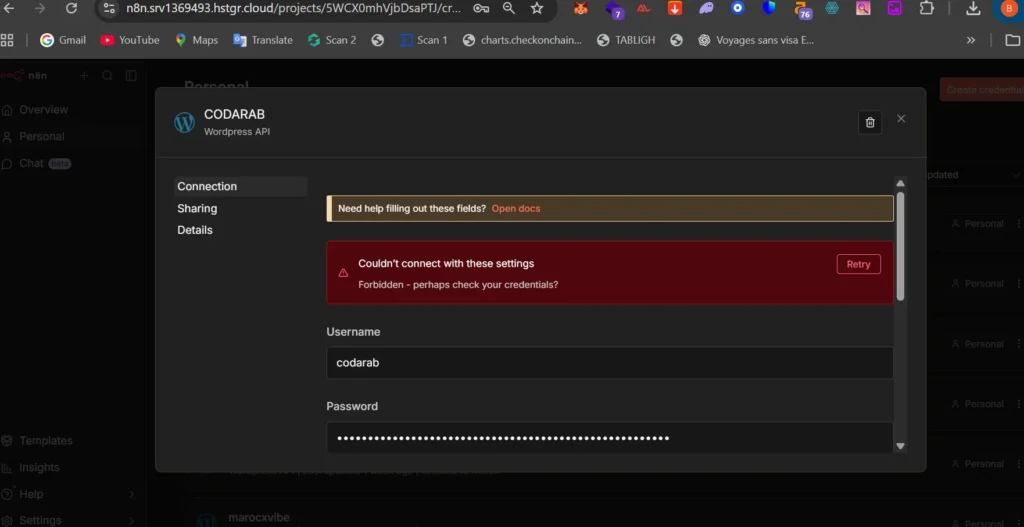
If you’re trying to connect your WordPress site to n8n on Hostinger and keep hitting the frustrating “Forbidden: Perhaps check your credentials” error — you’re in the right place. This quick guide walks you through the only fix that works.
https://www.youtube.com/embed/2NkVx6Qsiew Watch the full tutorial: Fix n8n Forbidden Error on Hostinger
Why Are You Getting the “Forbidden” Error in n8n?
When you try to connect n8n to your WordPress application hosted on Hostinger, the platform’s built-in CDN (Content Delivery Network) can block incoming API requests. This causes n8n to receive a 403 Forbidden response instead of a successful authentication, making it impossible to establish the connection — even when your credentials are 100% correct.
This is a Hostinger-specific issue and has nothing to do with your n8n setup or WordPress configuration.
The Root Cause: Hostinger’s CDN
Hostinger’s CDN is designed to improve website speed and security. However, it can mistakenly flag n8n’s API calls as suspicious traffic and block them, returning a 403 Forbidden error. The result? Your n8n workflow cannot authenticate with WordPress, and you’re stuck.
The Fix: Disable CDN on Hostinger
The solution is straightforward — disable the CDN from your Hostinger control panel. Here’s how to do it step by step:
- Log in to your Hostinger hPanel
- Navigate to your website’s dashboard
- Look for the CDN section under Performance or Advanced settings
- Disable or turn off the CDN toggle
- Go back to n8n and re-test your WordPress connection
That’s it! Once the CDN is disabled, n8n can communicate freely with your WordPress REST API and the Forbidden error disappears.
Who Does This Affect?
This fix applies to anyone who is:
- Using n8n (self-hosted or cloud) to automate WordPress tasks
- Hosting their WordPress site on Hostinger
- Seeing the error: “Forbidden: Perhaps check your credentials”
- Trying to use the WordPress node in n8n workflows
Will Disabling CDN Affect My Website?
Disabling the CDN may slightly affect page load speed for visitors who are geographically far from your server. However, for most small to medium WordPress sites, the difference is minimal. You can always re-enable it later if needed, or explore Hostinger’s CDN whitelist options if they become available.
Final Thoughts
The n8n + WordPress + Hostinger combination is powerful for automation — but only when the connection works. If you’ve been pulling your hair out over the “Forbidden: Check your credentials” error, now you know the culprit is Hostinger’s CDN, and the fix takes less than a minute.
Found this helpful? Watch the full video tutorial above and don’t forget to share this post with anyone facing the same issue.