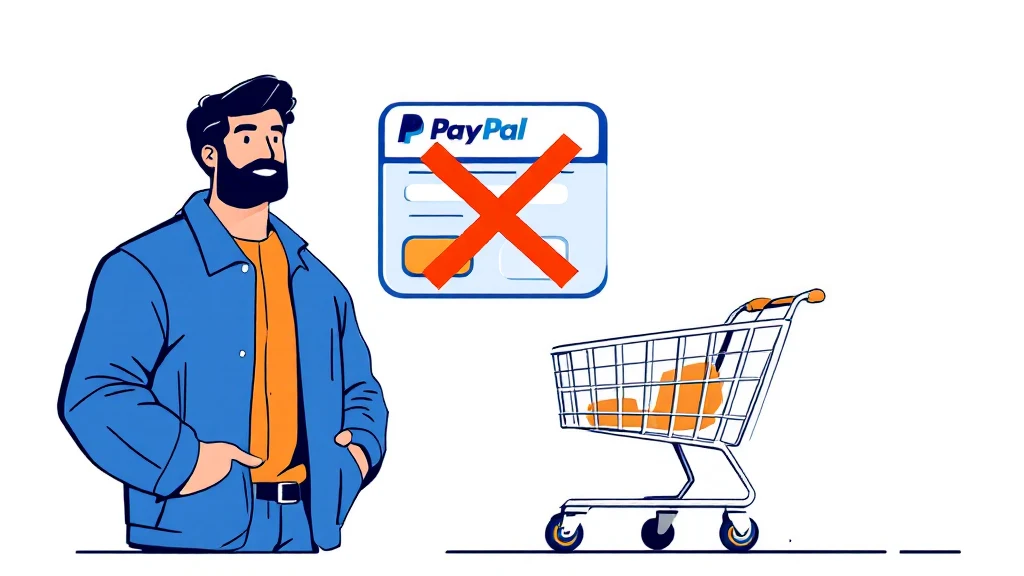
To disable PayPal button WooCommerce, store owners can use a dedicated plugin, custom code, or a specialized payment gateway like CODARAB Payments that natively removes the yellow PayPal button while keeping card payments active. This is one of the most effective ways to reduce PayPal disputes, protect your merchant account, and streamline the checkout experience for customers who prefer paying by card.

- Disabling the PayPal button in WooCommerce forces customers to pay by card, which significantly reduces disputes.
- The yellow PayPal button allows buyers to open a dispute in one click, making it risky for digital product and high-risk sellers.
- CODARAB Payments is a WooCommerce plugin built on the PayPal API that lets you disable the PayPal button natively.
- You can also disable paypal button woocommerce via code snippets, WooCommerce settings, or third-party gateway plugins.
- Card-only checkout is especially recommended for IPTV, digital products, dropshipping, and other high-risk niches.
- Hiding the PayPal button does not prevent you from receiving funds into your PayPal account when customers pay by card.
- The PayPal yellow button is the primary trigger for easy buyer disputes on WooCommerce stores.
- Disabling it while keeping card processing active is possible without losing PayPal as your payment processor.
- CODARAB Payments lets you disable paypal button woocommerce and still receive funds directly in your PayPal Business account.
- Card payments require a more complex dispute process for buyers, offering sellers better protection.
- High-risk merchants benefit most from removing the PayPal button and switching to card-only checkout.
- Multiple methods exist, from no-code settings to advanced plugin-based solutions.
- Why You Should Disable PayPal Button WooCommerce
- What Happens When You Remove the Yellow PayPal Button?
- Method 1: Disable PayPal Button WooCommerce Using CODARAB Payments
- Method 2: Disable the PayPal Button via WooCommerce Settings
- Method 3: Use a Custom Code Snippet to Hide the PayPal Button
- Method 4: Disable PayPal Button WooCommerce Per Product
- Method 5: Use a Checkout Redirect Plugin to Bypass PayPal
- Method 6: Replace PayPal with a Card-Only Gateway
- Method 7: Disable PayPal Button WooCommerce by Country or IP
- Comparison of All 7 Methods
- Who Benefits Most from Disabling the PayPal Button?
- Frequently Asked Questions
Why You Should Disable PayPal Button WooCommerce
The decision to disable PayPal button WooCommerce is not just a technical preference — it is a strategic move to protect your business. The yellow PayPal button allows any logged-in PayPal user to complete a purchase and open a dispute with a single click, without providing a card number or going through any friction.
For sellers of digital products, IPTV subscriptions, or high-copy items, this is a serious risk. A buyer can claim non-delivery or unauthorized use and receive a refund almost automatically, especially if you cannot provide physical tracking information. When it comes to disable PayPal button WooCommerce, preparation matters more than speed.
Removing the PayPal button and keeping only card payments adds a layer of protection. Card disputes require the buyer to contact their bank, fill in a form, and wait for an investigation — a process far more complex than a one-click PayPal claim.
What Happens When You Remove the Yellow PayPal Button?
When you disable PayPal button WooCommerce, the familiar yellow PayPal Smart Button disappears from your checkout page. Customers can no longer log in to their PayPal wallet to pay — instead, they must enter their card details directly into your checkout form.
Importantly, your PayPal account still receives the funds. The card payment is processed through the PayPal API in the background, and the money lands in your PayPal Business account as usual. The customer simply does not see the PayPal branding or the wallet login option.
This creates a cleaner, more professional checkout experience. It also reduces the psychological association with PayPal disputes, since many buyers only think to open a PayPal case when they see the PayPal logo prominently on the checkout page.
Method 1: Disable PayPal Button WooCommerce Using CODARAB Payments
The most complete way to disable PayPal button WooCommerce is to use CODARAB Payments, a dedicated WooCommerce plugin built on the PayPal API. This solution was designed specifically for merchants who want to accept international card payments while keeping their PayPal account as the receiving processor — without showing the yellow button to customers.
CODARAB Payments replaces the standard PayPal checkout with a minimalist card form. The yellow PayPal button is completely removed from the checkout page. Customers only see a clean credit or debit card input form. Anyone dealing with disable PayPal button WooCommerce should keep this step in mind.
Key advantages of this method include:
- Native option to disable paypal button woocommerce with a single toggle in the plugin settings.
- Card payments are processed via PayPal API, so funds arrive in your PayPal Business account.
- Product names are hidden on PayPal receipts — only the WooCommerce order number appears.
- Compatible with high-risk niches including IPTV, digital products, dropshipping, and peptides.
- No complex merchant account registration required — just a PayPal Business account.
You can see a live demonstration of CODARAB Payments at codarab.com/card-testing. Pricing is available directly on the CODARAB website.
Learn more about the latest features in CODARAB Payments V10.8.5: 5 New Features for WooCommerce.
Method 2: Disable the PayPal Button via WooCommerce Settings
You can disable PayPal button WooCommerce partially through native WooCommerce and PayPal plugin settings, without any custom code. This method works if you are using the official WooCommerce PayPal Payments plugin.
Navigate to WooCommerce > Settings > Payments > PayPal Payments. Inside the settings panel, look for the Smart Buttons or PayPal Checkout section. You can disable the button on the product page, cart page, and checkout page individually.
However, this method has limitations. It may not fully remove the PayPal button in all themes or with all page builders. It also does not replace the button with a card form — it simply removes the PayPal option, which could reduce conversions if you have no card payment alternative configured. For more background on this subject, see WooCommerce official documentation. This is exactly why disable PayPal button WooCommerce deserves a documented, methodical approach.
Use this method only as a quick fix or in combination with a card-only gateway.
Method 3: Use a Custom Code Snippet to Hide the PayPal Button
Developers can disable PayPal button WooCommerce by adding a PHP snippet to their theme’s functions.php file or using a code snippet plugin. This approach gives granular control over which buttons are removed and on which pages.
A common approach is to use the woocommerce_available_payment_gateways filter to unset the PayPal gateway conditionally. For example, you can remove PayPal for specific product categories or only on the checkout page while keeping it on the cart page.
This method requires basic PHP knowledge. A mistake in functions.php can break your site, so always use a child theme or a dedicated snippet manager plugin. Back up your site before making changes.
The code snippet approach is flexible but requires maintenance. Every time WooCommerce or the PayPal plugin updates, you may need to verify that your snippet still works correctly.
Method 4: Disable PayPal Button WooCommerce Per Product
A more targeted approach is to disable PayPal button WooCommerce on a per-product basis. This is useful when you sell both low-risk and high-risk products in the same store, and you only want to restrict PayPal for the risky items.
CODARAB offers a dedicated plugin for this use case. You can configure payment methods per product ID, product tag, or product category. When a customer adds a high-risk product to their cart, the PayPal button is automatically hidden and only card payment is available. Everything described above applies directly to disable PayPal button WooCommerce.
This granular control is especially valuable for mixed-inventory stores. Regular physical products can keep PayPal as an option, while digital downloads or IPTV subscriptions are restricted to card-only checkout.
Read more about this approach in the guide on Deactivate Payment Gateways Per Product in WooCommerce.
Method 5: Use a Checkout Redirect Plugin to Bypass PayPal
Another effective way to disable PayPal button WooCommerce is to use a checkout redirect plugin like CODARAB Redirect. Instead of modifying the payment gateway settings directly, this method redirects customers from your high-risk store to a separate low-risk checkout page where only card payments are available.
The redirect happens seamlessly. The customer does not leave your domain — the low-risk checkout page loads inside an iFrame on your own site. Orders are synchronized automatically between both stores in real time.
This approach is particularly useful when your domain name has already been flagged by PayPal’s webhook system. Even if PayPal detects your main domain as high-risk, the actual payment is processed through a clean, low-risk domain that PayPal does not associate with your niche.
Explore how this works in detail in the article about WooCommerce Checkout Inside iFrame: How to Show External Pages on Your Domain. Planning ahead for disable PayPal button WooCommerce saves both time and money later.
Method 6: Replace PayPal with a Card-Only Gateway
If your goal is to disable PayPal button WooCommerce entirely and replace it with a card-only solution, you can deactivate the PayPal gateway completely and install a dedicated card processing plugin. This removes all PayPal branding from your checkout and presents only a card form to customers.
CODARAB Payments is the recommended option for this approach, especially for high-risk merchants. It uses the PayPal API under the hood to process card payments, so you still benefit from PayPal’s infrastructure without exposing customers to the PayPal wallet login or the yellow button.
Alternative card-only gateways include Stripe (with limitations for high-risk niches) and various regional processors. However, for merchants selling digital goods, IPTV, or dropshipping products, CODARAB Payments offers the best balance of ease of setup and dispute protection.
For a broader perspective, see the guide on the Best WooCommerce Payment Gateway for High-Risk Merchants in 2026.
Method 7: Disable PayPal Button WooCommerce by Country or IP
A smart complementary strategy is to disable PayPal button WooCommerce selectively based on the customer’s country or IP address. This allows you to keep PayPal available for low-risk regions while hiding it for countries where dispute rates are historically high.
CODARAB offers a suite of plugins specifically for this purpose. You can configure rules to hide or disable any payment gateway based on the visitor’s detected country or IP range. This is particularly useful for merchants who sell globally and notice that disputes are concentrated in specific regions. Most questions about disable PayPal button WooCommerce come back to these same basics.
This method works in combination with any of the other methods above. For example, you can use CODARAB Payments as your primary gateway and add country-based rules to further restrict or customize the payment options shown at checkout.
Comparison of All 7 Methods
Choosing the right way to disable PayPal button WooCommerce depends on your technical skills, your product niche, and how completely you want to remove PayPal from the customer-facing checkout. The table below summarizes the key differences.
| Method | Technical Level | Removes Yellow Button | Keeps Card Payments | Best For |
|---|---|---|---|---|
| CODARAB Payments Plugin | Low (toggle in settings) | Yes, fully | Yes, via PayPal API | High-risk merchants, digital products |
| WooCommerce Native Settings | Low | Partially | Only if another gateway is active | Quick fix for standard stores |
| Custom PHP Snippet | High (developer) | Yes | Only if another gateway is active | Developers needing fine-grained control |
| Per-Product Gateway Control | Low (plugin) | Yes, per product | Yes | Mixed-inventory stores |
| Checkout Redirect (CODARAB Redirect) | Medium | Yes, on redirected page | Yes | Flagged domains, advanced protection |
| Replace with Card-Only Gateway | Low | Yes, fully | Yes | Merchants who want zero PayPal branding |
| Country/IP-Based Disable | Low (plugin) | Yes, for selected regions | Yes | Global stores with regional dispute issues |
Who Benefits Most from Disabling the PayPal Button?
The need to disable PayPal button WooCommerce is most urgent for merchants operating in high-risk niches. These are business categories where the nature of the product or service makes it difficult to prove delivery to PayPal’s dispute resolution team.
The following seller types benefit most from removing the yellow button:
- IPTV subscription sellers: Digital delivery is hard to prove, and dissatisfied customers often open PayPal disputes instead of contacting support.
- Digital product sellers: eBooks, software licenses, and online courses are frequently subject to “item not received” claims even after delivery.
- Dropshippers: Long shipping times create a window for disputes, and PayPal’s buyer protection is heavily weighted in favor of the customer.
- Peptide and supplement sellers: These products fall into regulated or gray-area categories where payment processors apply extra scrutiny.
- High-copy and replica product sellers: Payment processors may flag these stores, and disputes can accumulate quickly.
For all these cases, switching to card-only checkout via a solution like CODARAB Payments dramatically reduces the dispute rate. Card chargebacks require more effort from the buyer and go through the card network’s own process, which gives sellers more time and opportunity to respond with evidence.
You can also explore how CODARAB Payments hides product names on PayPal receipts, which provides an additional layer of protection. See the article on Hide Product Names on PayPal Receipts and Get Paid in USDT for more details.
Frequently Asked Questions
Can I disable paypal button woocommerce without losing PayPal as my payment processor?
Yes. With CODARAB Payments, you can disable paypal button woocommerce and still receive all funds directly in your PayPal Business account. The plugin uses the PayPal API to process card payments in the background. Customers pay by card and never see the yellow PayPal button, but your PayPal balance receives the payment as normal. For more background on this subject, see PayPal Business account.
Why does the PayPal yellow button cause more disputes than card payments?
The PayPal yellow button allows any buyer with a PayPal account to open a dispute in one or two clicks directly from their PayPal dashboard. Card payments, by contrast, require the buyer to contact their bank or card issuer, complete a formal chargeback form, and wait for an investigation. This additional friction significantly reduces impulsive dispute filings. A structured response to disable PayPal button WooCommerce always beats a rushed one.
Is it legal to disable paypal button woocommerce and only accept card payments?
Yes, it is completely legal. As a merchant, you have full control over which payment methods you offer on your store. You are not obligated to display the PayPal wallet button. Many large e-commerce stores accept only card payments without offering PayPal as a direct checkout option for customers.
Will disabling the PayPal button affect my checkout conversion rate?
It may cause a small initial drop for customers who strongly prefer PayPal wallet payments. However, for high-risk merchants, the reduction in disputes and account freezes far outweighs any minor conversion loss. A clean card form can also increase trust for customers who are wary of sharing their PayPal login on third-party sites.
What is the difference between hiding the PayPal button and deactivating the PayPal gateway?
Hiding the button removes the visual PayPal wallet login option from the checkout page while the PayPal API may still process card payments in the background. Deactivating the gateway removes PayPal entirely as a payment processor. With CODARAB Payments, you hide the button but keep the PayPal API active for card processing.
Does CODARAB Payments work for sellers outside the US and Europe?
Yes. CODARAB Payments works in any country where PayPal Business accounts are supported. Since it is built on the PayPal API, it inherits PayPal’s global reach. Merchants in North Africa, the Middle East, Southeast Asia, and Latin America have successfully used it to accept international card payments. Anyone researching disable PayPal button WooCommerce will recognise this pattern quickly.
Can I disable paypal button woocommerce only for specific products?
Yes. CODARAB offers a per-product payment gateway control plugin that lets you hide or disable any payment method based on product ID, product tag, or product category. This is ideal for mixed-inventory stores where some products are high-risk and others are not.
What happens to my PayPal account health when I disable the yellow button?
Disabling the PayPal button typically improves PayPal account health over time. Fewer disputes mean a lower dispute rate, which reduces the risk of account limitations or freezes. PayPal monitors dispute ratios closely, and bringing that ratio down through card-only checkout is one of the most effective protective measures available.
Is CODARAB Payments suitable for IPTV subscription stores?
Yes, CODARAB Payments was specifically designed with high-risk niches like IPTV in mind. It hides product names on PayPal receipts, replacing them with the WooCommerce order number. This prevents PayPal’s automated systems from detecting IPTV-related keywords in transaction data, which helps protect your account from automated flags.
Can I combine multiple methods to disable paypal button woocommerce?
Absolutely. Many advanced merchants combine CODARAB Payments with country-based payment rules and product-level gateway controls. For domains already flagged by PayPal, adding CODARAB Redirect as a second layer provides checkout cloaking that prevents PayPal’s webhook from detecting your store’s high-risk nature.
To disable PayPal button WooCommerce effectively and protect your store from disputes, the most complete solution available today is CODARAB Payments. It removes the yellow button, keeps card payments active via the PayPal API, hides product names on receipts, and requires no complex business registration. For high-risk merchants who need an extra layer of protection, combining it with CODARAB Redirect provides full checkout cloaking. Start by reviewing the full documentation and live demo at How to Disable the PayPal Yellow Button to Reduce Disputes and take the first step toward a safer, dispute-free WooCommerce store.